
Virtualization relies on hypervisors to pool computing resources (such as CPU, memory and storage) and distribute them across VMs. There are two main types of hypervisors; type 1 hypervisors which runs directly on the hardware (e.g. KVM, Microsoft Hyper-V) and type 2 hypervisors which runs on top of a host OS (e.g. Oracle VirtualBox, VMWare Workstation).
Key components
KVM (Kernel-based Virtual Machine) is an hypervisor baked into the Linux kernel.
QEMU (Quick EMUlator) is used to emulate the hardware.
Libvirt is a toolkit and API for managing virtualization platforms.
virsh is a CLI tool for managing libvirt VMs.
Virtual Machine Manager is a graphical tool for managing libvirt VMs.
Installing necessary packages
Prerequisite: Make sure virtualization is enabled in BIOS/UEFI!
Depending on your distribution, installation may vary. But the main packages include:
qemu-kvm: the emulator itself.libvirt-daemon: manages virtualization platforms in the background.bridge-utils: contains utilities for configuring ethernet bridge interfaces, useful for setting up networks for VMs.virt-manager: provides the graphical interface for managing libvirt VMs.
sudo apt install qemu-kvm libvirt-daemon bridge-utils virt-managerCreate a new VM
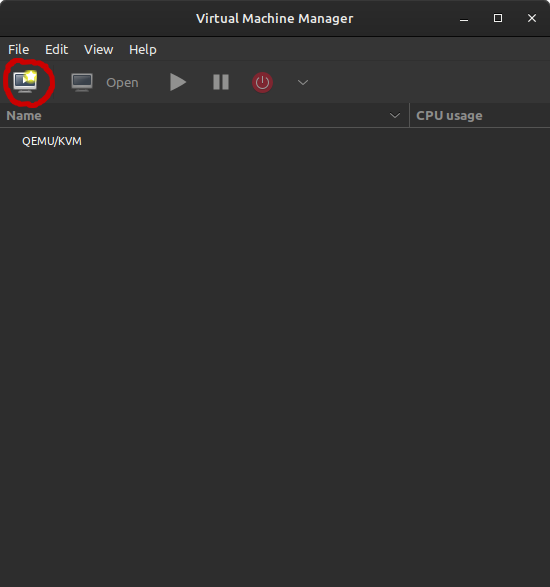
Using the Virtual Machine Manager GUI, select “Create a new virtual machine” in the top left and follow the steps prompted.
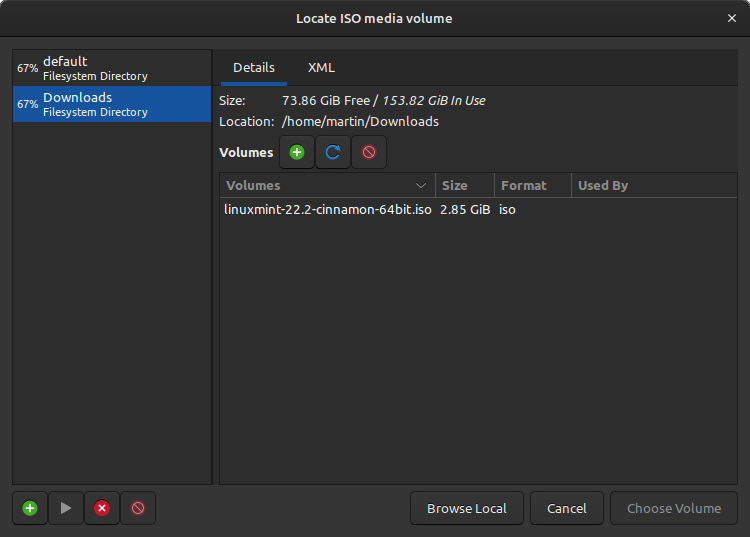
Libvirt uses storage pools to manage disk images, which are essentially directories for storing them. The default storage pool is located at /var/lib/libvirt/images. More storage pools can be added, such as the downloads folder, which is convenient when downloading an ISO file for example.
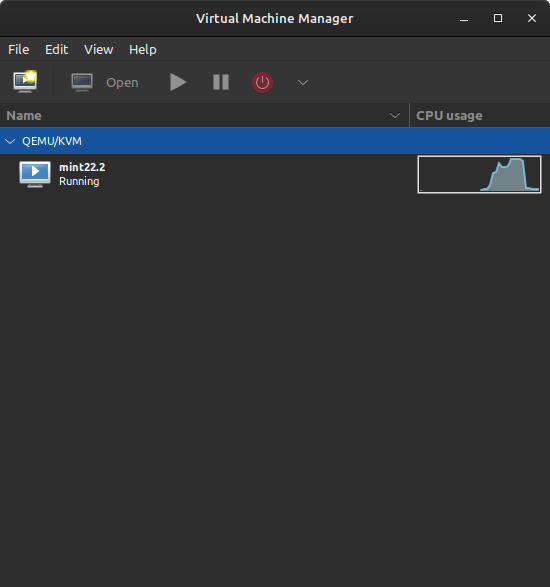
After creating the VM, it is listed in the GUI and can be managed from there.
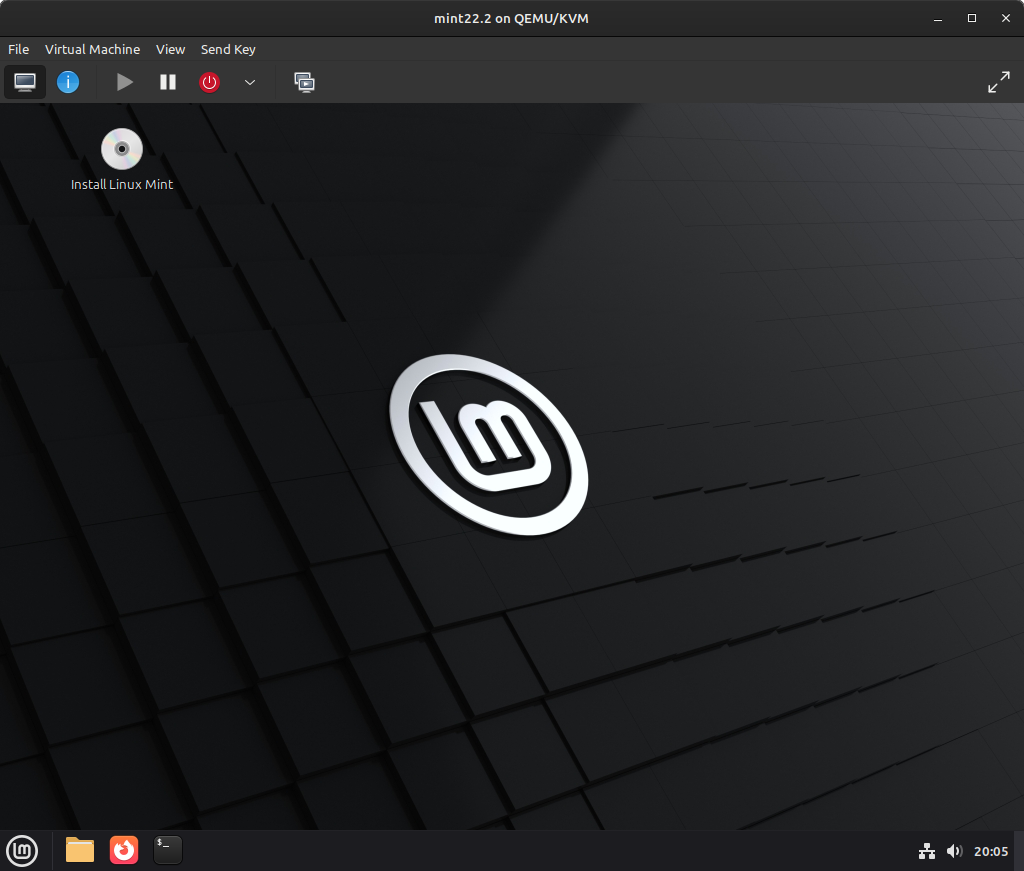
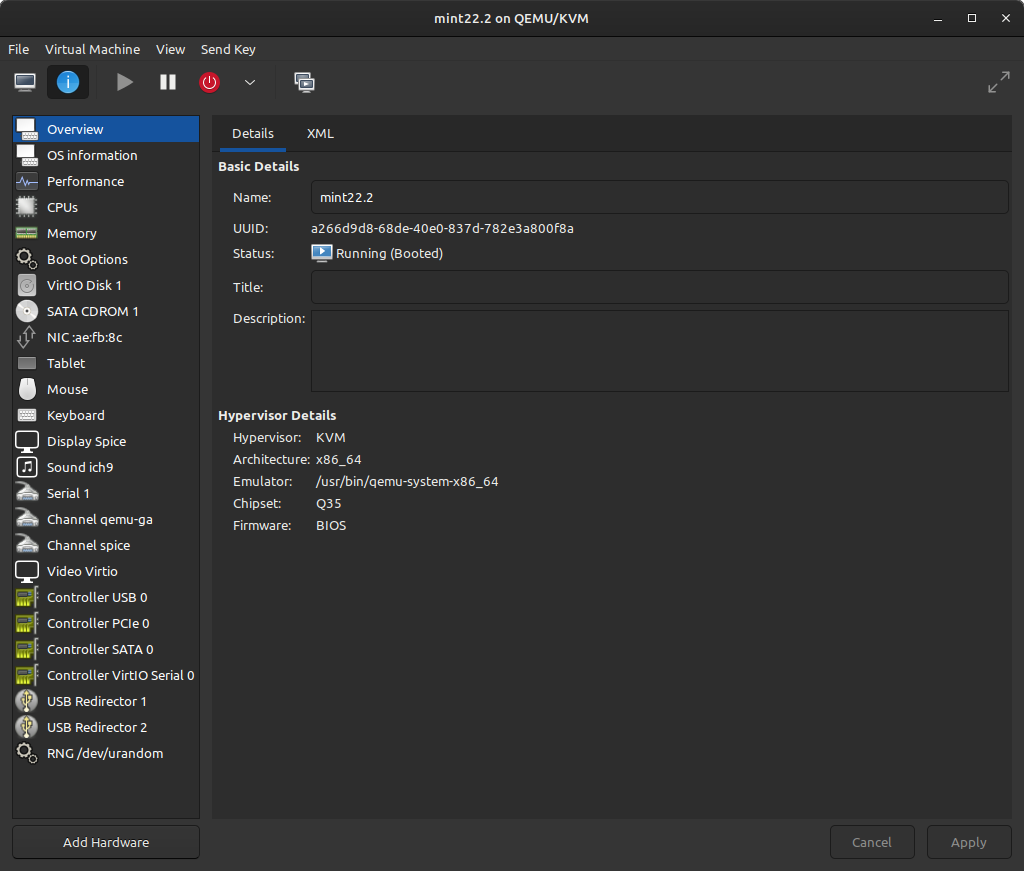
Opening the VM reveals a new window with different views for showing the VM itself, configuring virtual hardware as well as managing snapshots.
USB redirect
One of the nice features of KVM is USB redirection, which makes it very easy to redirect a physical USB device from the host machine to the guest OS:
- Inside the VM window, press “Virtual Machine” and select “Redirect USB device”.
- Now you can select which USB devices to redirect into the VM.
To remove the redirect, simply open the same menu and uncheck the USB device to connect it back to the host machine.